What a Field App Should Actually Do for Construction Crews
Quick answers
- What is a construction field app? It's the mobile companion to your job management software that lets crews clock in, add photos and notes, and see their job list from the jobsite instead of the office.
- What should a contractor mobile app do first? Time tracking, photo capture tied to the right job, quick notes, and a clear list of today's jobs — everything else is secondary.
- Do field techs need the full desktop software on their phone? No. A good field app shows a tech only what they need to do their job that day, not a shrunk-down version of the whole back office.
- Should the field app work offline? Yes, at least for capturing photos and notes, because plenty of jobsites have no signal until you're back in the truck.
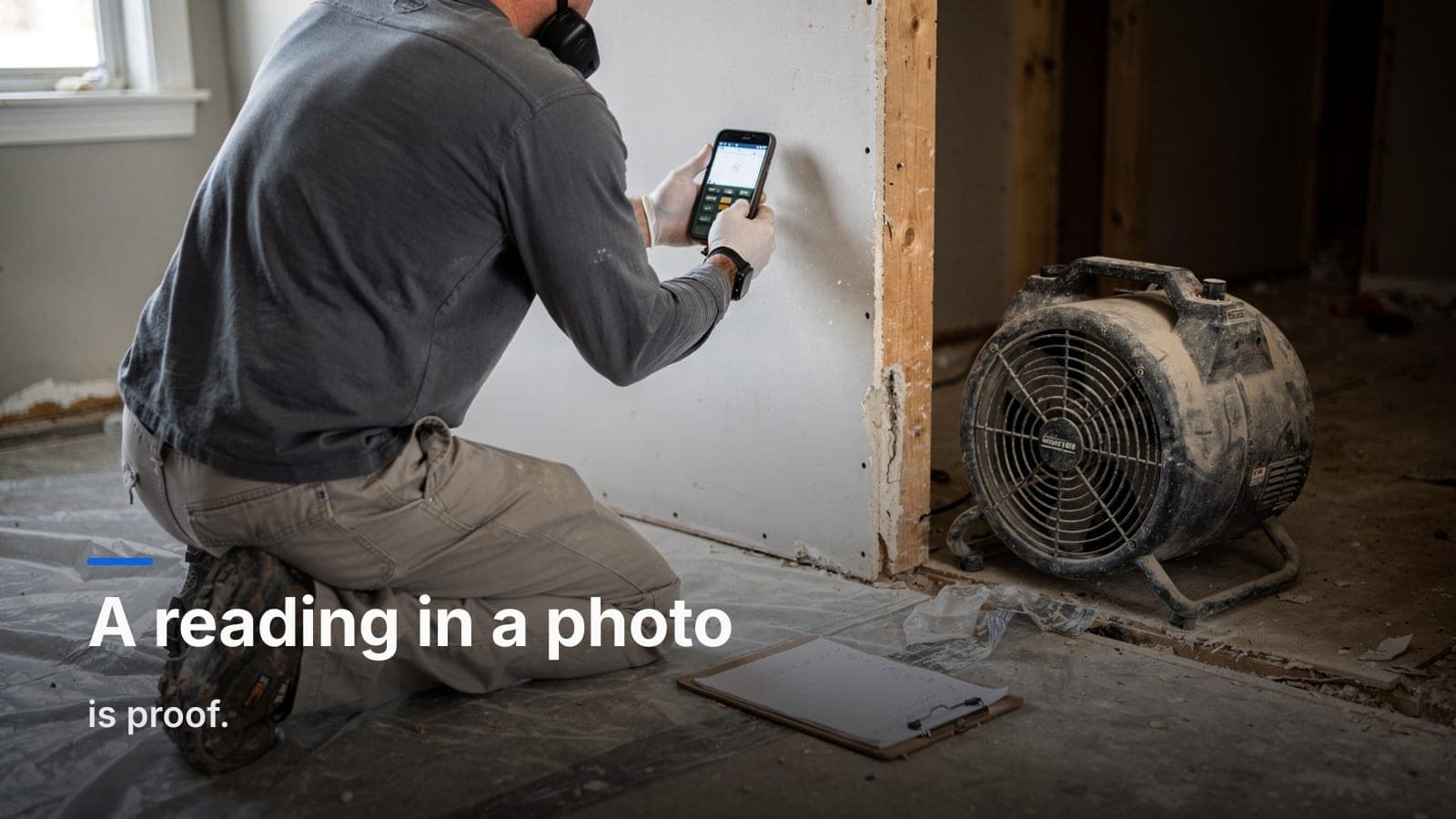
Most "construction field apps" are built by people who have never stood in a muddy basement holding a phone with wet gloves on. You can tell. The buttons are tiny, the flow assumes you're sitting at a desk, and half the screen is taken up by dashboards a framer will never look at. A field tech app for construction is a different animal than the office software, even when it shares the same data.
Here's what a field app should actually do — and what it should leave alone.
The job list is the home screen, not a dashboard
When a tech opens the app in the morning, the first thing they should see is: what jobs am I on today, and where are they. Not a bar chart. Not AR aging. Not a feed of company-wide activity.
The whole point of a jobsite mobile software tool is to answer "what do I do next" in about two seconds. Tap a job, see the address, the scope, the notes from yesterday, and get to work. If a tech has to scroll past four widgets to find the address of the house they're standing outside of, the app was designed for a demo, not a jobsite.
Keep the desktop rich and the phone lean. The office needs job profitability, custom statuses across every open job, and the full document trail. The field needs today's list.
Clock in and out without a fight
Time is where the money leaks. If clocking in is annoying, guys clock in late, forget to clock out, or "remember" their hours at the end of the week — which is really just guessing. A good contractor mobile app makes clock in a single obvious tap the moment they land on the job.
That matters because time tracking feeds two things you can't fake later: payroll and job costing. If the hours aren't captured clean at the source, every report downstream is soft. We went deep on this in our piece on crew time tracking for construction without the headaches, but the short version is: capture it in the field, tie it to the job, and stop reconstructing timesheets from memory on Friday afternoon.
A few things that make or break field time tracking:
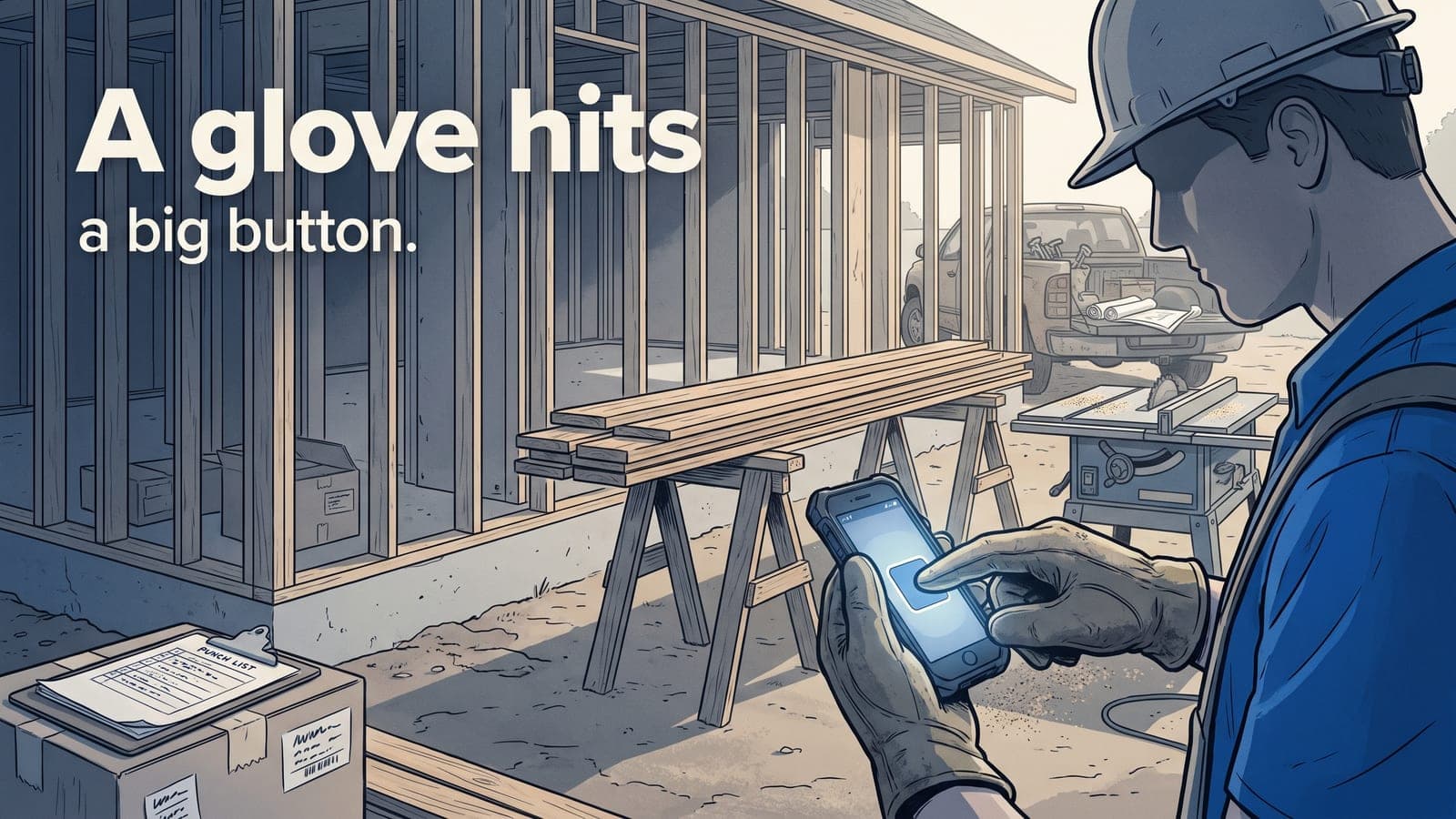
- One tap, big target. A glove hits a big button. It does not hit a checkbox the size of a pea.
- Tied to the job automatically. The tech is on Job 1042, so the time lands on Job 1042. No dropdown menu to fumble through.
- Visible status. The tech can see at a glance whether they're currently clocked in. No mystery.
Photos that land on the right job — automatically
Every crew takes photos now. The problem is never taking them, it's finding them later. Ten guys shooting to their camera roll means ten camera rolls nobody can search, and when you need the before-shot of a wall you demoed three weeks ago, it's gone.
A field app should capture photos straight into the job record. Tech is on the job, opens the app, shoots the photo, and it's filed — dated, attached, searchable by anyone in the office. That's the difference between a jobsite mobile software tool and a consumer camera app. The consumer app makes a pretty photo. The field app makes a photo you can actually use in a dispute, a change order, or a closeout package.
This is even more true on the restoration and contents side, where photo documentation is basically the whole game. If you do that kind of work too, our guide on how to photograph contents so the carrier doesn't push back covers what a defensible photo set looks like. For straight construction it's less about the carrier and more about protecting yourself when the customer says "that damage was already there."
Notes from the field, not from memory
The best note is the one written standing in front of the thing. "Found rot behind the tub surround, homeowner notified, photo attached." Written on the spot, it's a fact. Written from the truck an hour later, it's a paraphrase. Written from the office that night, it's fiction.
A field app should make threaded notes fast and dumb-simple — type it, attach a photo, done. Those notes should live on the same job record the office sees, so nobody's texting the PM screenshots that vanish into a group chat. One job, one record, one thread everyone reads. That single shared record is also what keeps small change requests from quietly eating your margin, which we get into in change orders that don't kill your margin.
Glove-friendly beats feature-rich
Here's the line most software gets wrong: a field app is not the desktop app on a smaller screen. It's a purpose-built tool for a person whose hands are dirty, who's outside in the sun, who has thirty seconds between tasks.
That means:
- Big touch targets. Sized for a thumb, not a stylus.
- High contrast. Readable in direct sunlight, not a pale gray gradient.
- Short flows. Two or three taps to do the common thing. If it takes seven, nobody does it.
- Offline capture. Basements and new-construction sites have no bars. The app should hold photos and notes and sync when signal comes back, not lose the work.
Consumer apps optimize for engagement — keeping you scrolling. A field tech app should optimize for the opposite: get in, capture what matters, get out, get back to work. The best compliment a crew can give an app is that they barely notice using it.
What the field app should NOT do
Just as important as the feature list is the restraint. Your framer does not need to see company-wide AR. Your demo guy should not be able to edit invoices. The field app is a capture-and-view tool, not the accounting seat.
Keep the estimating, the QuickBooks sync, the profitability reports, and the custom status board on the desktop where the office manager and owner live. When you're deciding whether your current setup even cuts it, the signs you've outgrown spreadsheets are a good gut check — usually the field is where the cracks show first, because that's where data either gets captured clean or gets lost.
How JobWorkflowPro handles the field
Every JobWorkflowPro plan includes a native mobile companion app for field techs, and it's built on exactly this thinking. Techs get their job list, one-tap clock in and out, camera-to-job photos, and threaded notes — all syncing to the same job record the office works from. The heavy stuff (estimates, invoicing, QuickBooks Online sync, profitability reports) stays on the desktop, so the phone stays lean.
For general contractors specifically, the construction package keeps job tracking clean — no insurance claim fields cluttering the screen, just the job, the crew, the hours, and the photos. It's the same platform restoration and contents crews use, minus the parts a GC doesn't need.
Frequently asked questions
Does a field app replace our project management software?
No. Think of the field app as the capture layer — hours, photos, notes from the jobsite — feeding the same job record your office manages. The desktop is still where estimating, scheduling detail, and reporting happen.
Can multiple crew members use the app on the same job?
Yes, and they should. Everyone on the job clocks their own time and adds their own photos and notes to the shared record, so you get accurate labor costs and a complete photo history instead of one person's version.
What happens to photos taken with no cell signal?
A well-built field app stores them on the device and syncs automatically once the phone reconnects. Your crew should never lose a shot because the basement had no bars.
Do field techs count against our user seats?
On JobWorkflowPro, plans include 10 seats to start, and field techs use the same login system as the office. See pricing for how seats scale as your crew grows.
If your crew is still texting photos and reconstructing timesheets on Friday, that's the thing to fix first. You can start a free trial and put the mobile app in a tech's hands on the next job, or email us at sales@jobworkflowpro.com and we'll walk through what a lean field setup looks like for your shop.